 MarvoHelp Center
Create a campaign
Steps
- Open Campaigns and press New campaign.
- Give it a name.
- Choose the country. A campaign only ever calls numbers in this country, and numbers from another country cannot be added to it. This cannot be changed later, which protects you from calling the wrong country under the wrong rules.
- Choose the call type and, for sales types, the offer.
- Choose the phone line to call from (only lines that belong to that country are accepted).
- Set calls at once (1 to 10). Start with 1.
- Press Create campaign. It starts as a draft: nothing is dialled yet.
Then add leads and press Start.
How a campaign behaves
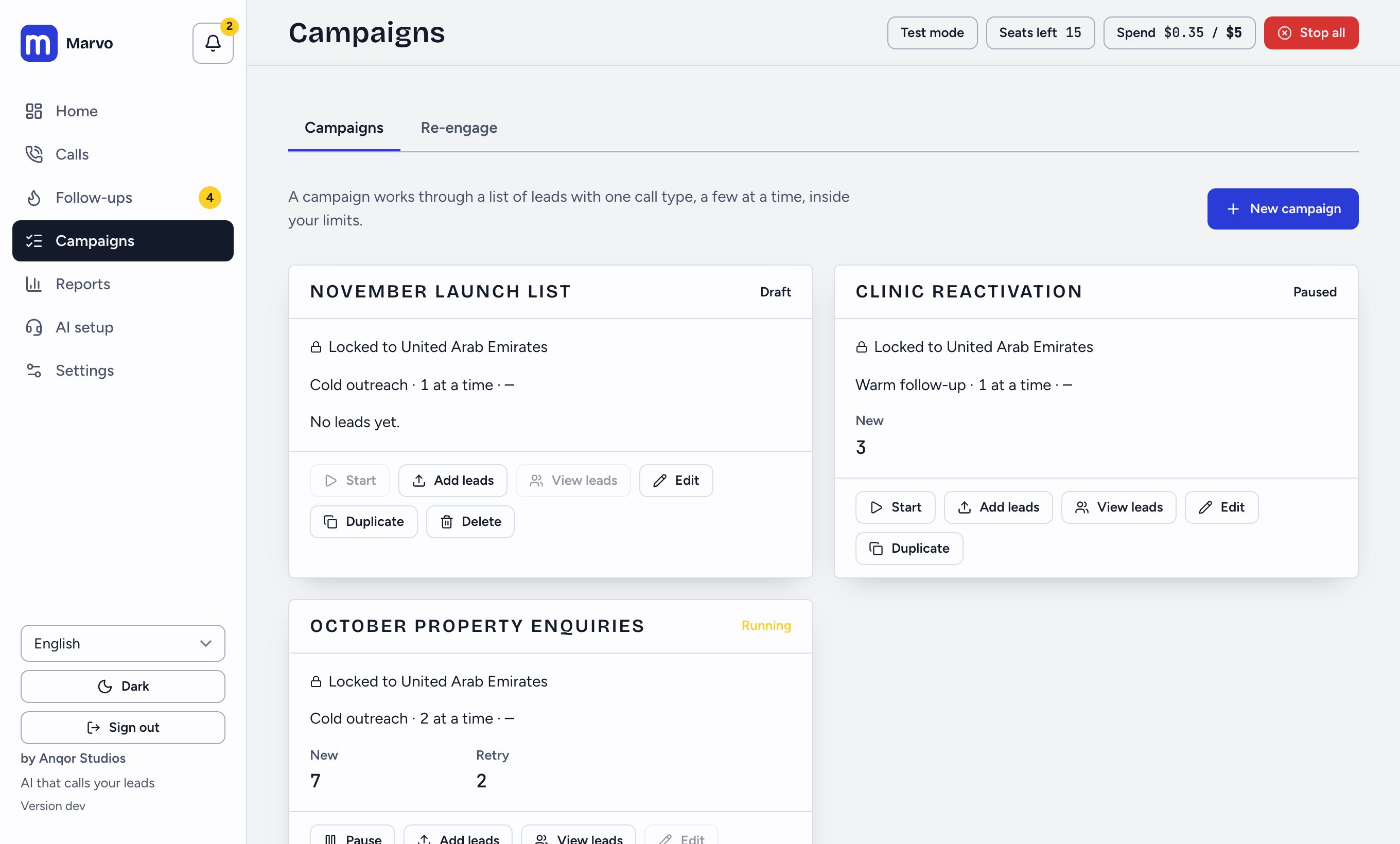
- It dials only inside your calling hours and limits, and never a number on the do-not-call list.
- A lead who does not answer is tried again later (default: up to 2 tries, 24 hours apart; change this under Settings > Calling and compliance). A person is never called more than once a day or twice a week.
- It finishes when every lead has been tried.
- Pause stops it dialling; Start resumes it. Calls already in progress finish.
To change a campaign later see Edit, pause or duplicate a campaign.
Did this answer your question?
Thanks for telling us. If something is missing, email hello@marvo.cc.